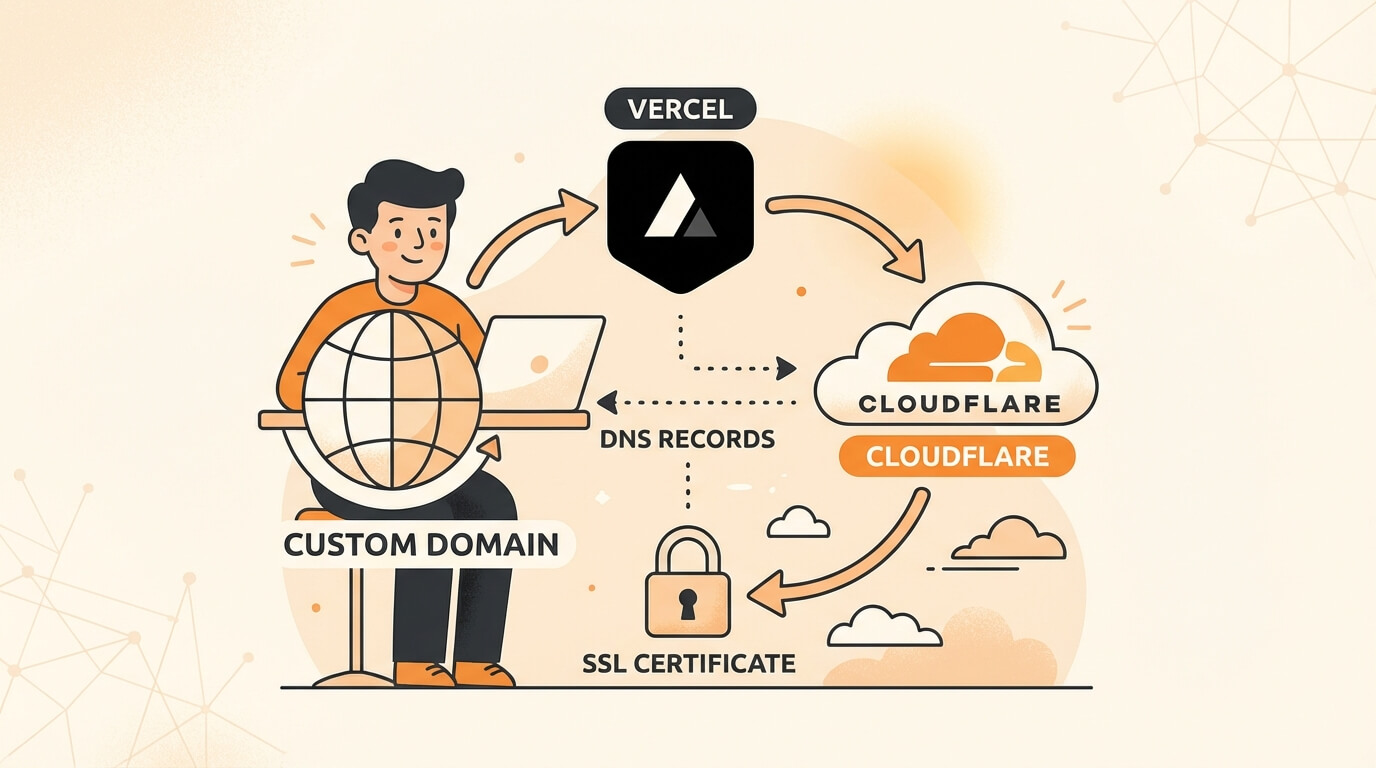
How to Setup Custom Domain on Vercel with Cloudflare
Sunday, Dec 28, 2025
Have a project on Vercel but still using the *.vercel.app domain? It’s time to upgrade to a custom domain! In this tutorial, we’ll set up a custom domain using Cloudflare as DNS manager—a powerful combination for website performance and security.
Why Custom Domain?
Before we start, here’s why custom domains are important:
- Professionalism —
projectname.comis more credible thanprojectname.vercel.app - Branding — Your own domain = strong brand identity
- SEO — Search engines favor custom domains
- Professional email — Can set up
[email protected] - Full control — You own it, you control it
Step 1: Buy a Domain
First, you need a domain. Some recommended registrars:
Option 1: Namecheap
- Affordable prices for popular TLDs (
.com,.dev,.io) - Free WhoisGuard (privacy protection)
- User-friendly interface
Option 2: Google Domains
- Simple pricing, no hidden fees
- Easy integration with Google services
- Clean interface
Option 3: Cloudflare Registrar
- At-cost pricing (no markup)
- Directly integrated with Cloudflare DNS
- No renewal price increases
Pro tip: If you buy a domain at Cloudflare Registrar, step 2 can be skipped since DNS is already automatically on Cloudflare.
Step 2: Setup Cloudflare DNS
Cloudflare will be our DNS manager. This makes websites faster and more secure.
2.1 Create Cloudflare Account
- Go to cloudflare.com
- Click Sign Up and create an account
- Choose the Free plan (sufficient for most use cases)
2.2 Add Domain
- In the dashboard, click Add a Site
- Enter your domain (example:
projectname.com) - Select Free plan, then click Continue
- Cloudflare will scan existing DNS records
2.3 Update Nameserver
Cloudflare will give you 2 nameservers, for example:
ada.ns.cloudflare.com
bob.ns.cloudflare.com
Go to the registrar where you bought your domain, then change the nameservers to those provided by Cloudflare.
At Namecheap:
- Login → Domain List
- Click Manage on your domain
- In the Nameservers section, select Custom DNS
- Enter Cloudflare nameservers
At Google Domains:
- Login → Select domain
- Click DNS → Custom name servers
- Enter Cloudflare nameservers
DNS propagation usually takes 5-30 minutes, but can take up to 24 hours.
Step 3: Connect Domain to Vercel
Now we connect the domain to your Vercel project.
3.1 Add Domain in Vercel
- Open vercel.com and login
- Select the project you want to connect
- Go to Settings → Domains
- Click Add and enter your domain
- Vercel will display DNS instructions
3.2 Add DNS Records in Cloudflare
Vercel usually asks you to add one of these:
Option A - A Record (recommended for apex domain):
| Type | Name | Content |
|---|---|---|
| A | @ | 76.76.21.21 |
Option B - CNAME Record (for www or subdomain):
| Type | Name | Content |
|---|---|---|
| CNAME | www | cname.vercel-dns.com |
How to add in Cloudflare:
- Go to your domain dashboard
- Click the DNS tab → Records
- Click Add record
- Fill according to the table above
- Important: Set proxy status to DNS only (gray cloud icon)
3.3 Why Must Proxy Be Off?
Vercel already has its own CDN and SSL. If Cloudflare proxy is active (orange cloud), issues can occur:
- SSL conflict
- Redirect loop
- Performance issues
So for the main domain, turn off Cloudflare proxy.
Step 4: SSL Configuration
Vercel automatically generates a free SSL certificate via Let’s Encrypt. But we need to ensure correct settings.
4.1 Vercel SSL
- In Vercel dashboard → Settings → Domains
- Make sure the domain has Valid Configuration status
- SSL certificate will auto-generate within a few minutes
4.2 Cloudflare SSL Settings
Since proxy is off, SSL is fully handled by Vercel. But if you enable proxy for other subdomains:
- Go to SSL/TLS in Cloudflare
- Set mode to Full (strict)
- This prevents mixed content and SSL errors
Step 5: Redirect www to non-www (or vice versa)
Choose one version as the primary domain. Usually developers prefer non-www (projectname.com).
5.1 Setup in Vercel
- In Settings → Domains, add both versions:
projectname.comwww.projectname.com
- Click one and select Set as Primary
- The other version will auto-redirect to primary
5.2 DNS Records for Both
In Cloudflare, add:
| Type | Name | Content | Proxy |
|---|---|---|---|
| A | @ | 76.76.21.21 | Off |
| CNAME | www | cname.vercel-dns.com | Off |
Step 6: Setup Multiple Domains
Have more than one domain for one project? Easy.
6.1 Add All Domains in Vercel
- Settings → Domains → Add
- Add each domain (example:
projectname.io,projectname.dev) - Set one as primary, the rest as redirects
6.2 DNS Setup for Each Domain
Repeat Step 3.2 for each domain in their respective Cloudflare.
Step 7: Setup Subdomain
Want to create blog.projectname.com or api.projectname.com? Here’s how.
7.1 In Vercel
You have 2 options:
Option A - Subdomain for the same project:
- Settings → Domains → Add
- Enter
blog.projectname.com - Will point to the same project
Option B - Subdomain for different project:
- Open another project in Vercel
- Add subdomain in Settings → Domains
7.2 In Cloudflare
Add CNAME record:
| Type | Name | Content | Proxy |
|---|---|---|---|
| CNAME | blog | cname.vercel-dns.com | Off |
| CNAME | api | cname.vercel-dns.com | Off |
Step 8: CDN Optimization
Although Vercel already has Edge Network, there are some additional optimizations.
8.1 Vercel Edge Network
Vercel projects are automatically deployed to global edge locations. For Asia, usually served from Singapore.
8.2 Enable Cloudflare Features (For Subdomains with Proxy On)
If there’s a subdomain with proxy active, enable:
-
Speed → Optimization
- Auto Minify (HTML, CSS, JS)
- Brotli compression
-
Caching → Configuration
- Browser Cache TTL: 1 month
- Set caching rules for static assets
-
Speed → Image Optimization (Pro plan)
- Polish: Lossless or Lossy
- WebP conversion
8.3 Page Rules (Legacy) or Rules
Create rule for static assets:
URL: *projectname.com/assets/*
Setting: Cache Level = Cache Everything
Edge Cache TTL: 1 month
Step 9: Troubleshooting DNS Issues
Sometimes there are problems. Here’s how to debug.
9.1 “DNS_PROBE_FINISHED_NXDOMAIN”
Cause: DNS hasn’t propagated or record is wrong.
Solution:
- Check nameserver is updated at registrar
- Wait for propagation (check at whatsmydns.net)
- Verify DNS records in Cloudflare
9.2 “Too Many Redirects” or “ERR_TOO_MANY_REDIRECTS”
Cause: SSL conflict between Cloudflare and Vercel.
Solution:
- Turn off Cloudflare proxy (set to DNS only)
- Or set SSL mode to Full (strict)
- Clear browser cache and cookies
9.3 “Invalid Configuration” in Vercel
Cause: DNS records don’t match.
Solution:
- Make sure A record points to
76.76.21.21 - Or CNAME points to
cname.vercel-dns.com - Delete conflicting records
- Wait a few minutes and refresh Vercel dashboard
9.4 SSL Certificate Not Generated
Cause: DNS hasn’t propagated or CAA record blocking.
Solution:
- Make sure there’s no CAA record blocking Let’s Encrypt
- Or add CAA record that allows:
| Type | Name | Content |
|---|---|---|
| CAA | @ | 0 issue “letsencrypt.org” |
9.5 Check DNS Propagation
Use these tools to verify:
- whatsmydns.net — Global DNS propagation
- dnschecker.org — Multiple DNS check
- Terminal:
dig projectname.com +shortornslookup projectname.com
Quick Checklist
Before going live, make sure:
- Domain is purchased and active
- Nameserver pointing to Cloudflare
- DNS records added correctly
- Cloudflare proxy off for main domain
- Domain valid in Vercel dashboard
- SSL certificate generated
- www ↔ non-www redirect is set up
- Test access from browser (clear cache first)
Conclusion
Setting up custom domain on Vercel with Cloudflare does require several steps, but the result is worth it. You get:
- Professional custom domain
- Powerful DNS management
- Free and auto-renewing SSL
- Global CDN for optimal performance
- DDoS protection from Cloudflare (even with proxy off, basic protection still exists)
If you have questions or get stuck on any step, feel free to reach out. Happy deploying! 🚀