
AI Coding Assistant Tutorial: Claude, ChatGPT, Cursor
Monday, Dec 22, 2025
AI has changed the way we code. This doesn’t mean developers will be replaced, but developers who use AI will be more productive than those who don’t.
In this tutorial, I’ll share my experience using various AI tools for coding, from ChatGPT, Claude, Cursor, to GitHub Copilot.
Why Use AI for Coding?
AI can help you:
- ✅ Debug code faster
- ✅ Generate boilerplate code
- ✅ Refactor code to be cleaner
- ✅ Write documentation
- ✅ Learn new technologies
- ✅ Code review
1. ChatGPT for Coding
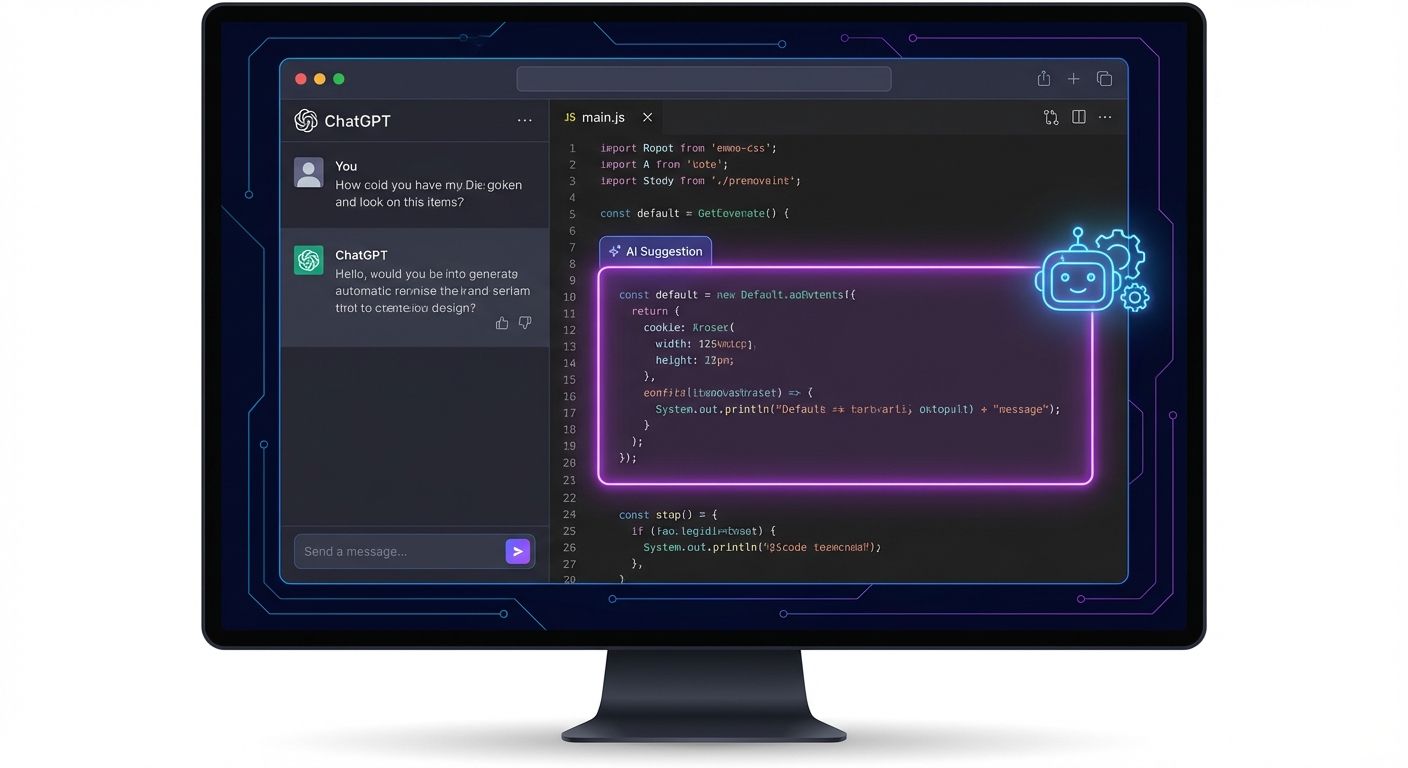
ChatGPT (especially GPT-4) is suitable for:
- Explaining programming concepts
- Debugging error messages
- Generating code snippets
- Brainstorming solutions
How to Use ChatGPT for Debugging
Less effective prompt:
"My code has an error, please fix it"

Effective prompt:
"I'm getting error 'TypeError: Cannot read property 'map' of undefined'
in this React component:

[paste code]

The data I fetch from the API has this format:
[paste sample data]

What's the cause and how do I fix it?"
Example Prompt for Generating Code
"Create a React hook for fetching data with features:
- Loading state
- Error handling
- Retry mechanism
- Cancel request on unmount

Use TypeScript and axios."
ChatGPT will generate complete code with explanations.
2. Claude AI for Coding
Claude (especially Claude 3.5 Sonnet) has advantages:
- Large context window (200K tokens) - can paste entire codebase
- Better at reasoning complex problems
- Rarely “hallucinates” compared to other models
- Can upload files directly
When to Use Claude?
Claude is suitable for:
- Refactoring large code
- Architecture analysis
- Pull request review
- Debugging complex issues
Example: Refactor Code with Claude
"Please refactor this React component so that:
1. Separate logic into custom hooks
2. Implement proper error boundary
3. Optimize re-renders with useMemo/useCallback
4. Add TypeScript types

Explain each change you make.

[paste component code - can be very long due to large context window]"
Tips for Using Claude
- Leverage the context window - paste more context
- Ask for explanations - Claude is good at explaining reasoning
- Iterate - ask for revisions if the result isn’t quite right
3. Cursor IDE - AI-Powered Code Editor
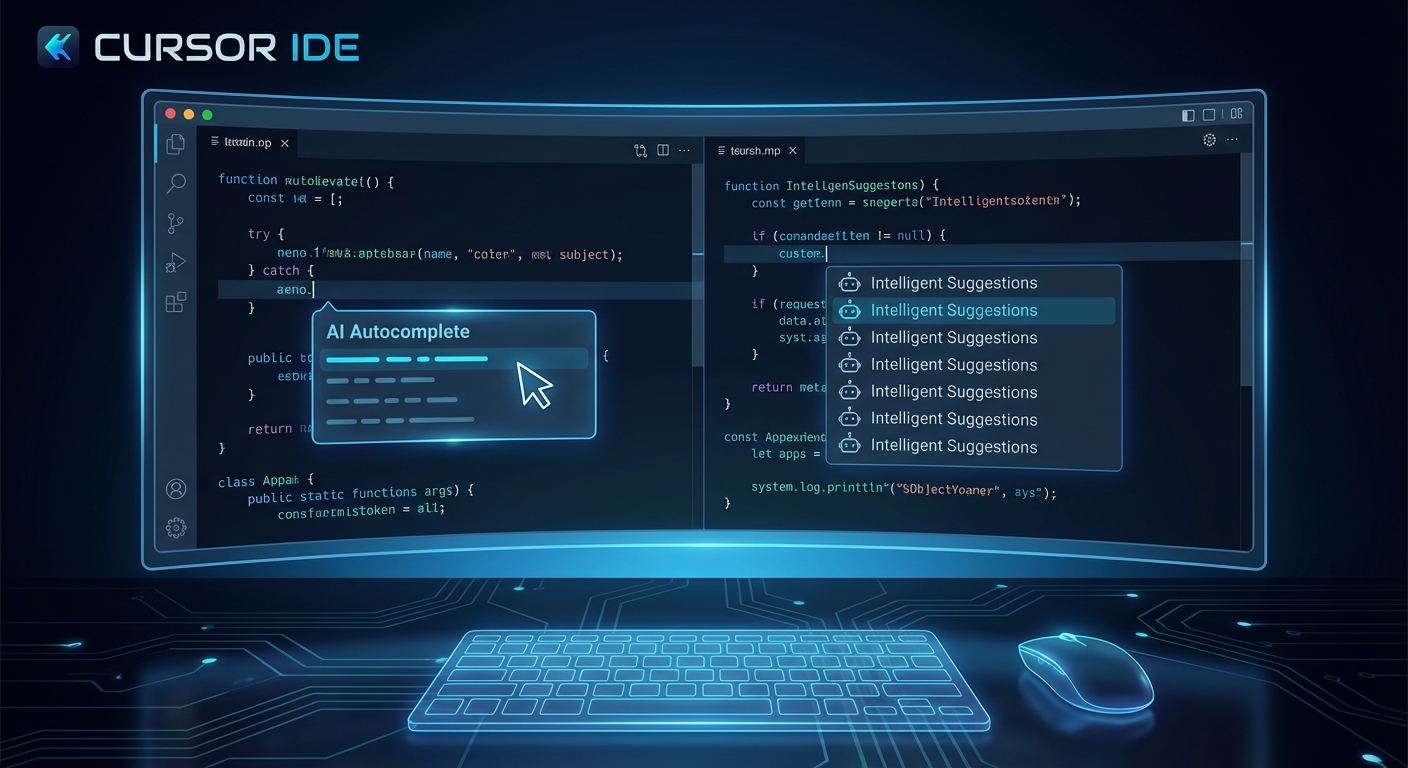
Cursor is a VS Code fork with AI built-in. This is a game changer for productivity.
Main Features of Cursor
| Feature | Function |
|---|---|
| Cmd+K | Edit code with inline AI |
| Cmd+L | Chat with AI about codebase |
| Tab | Autocomplete with AI |
| @codebase | Ask about entire project |
Example Cursor Usage
Inline Edit (Cmd+K)
Select code, press Cmd+K, then type:
"Add error handling and loading state"Cursor will edit the code directly in the editor.
Chat with Codebase (Cmd+L)
@codebase how does the authentication flow work in this project?Cursor will analyze the entire codebase and explain.
Setup Cursor
- Download at cursor.com
- Import settings from VS Code
- Login and choose model (Claude or GPT-4)
- Start coding!
4. GitHub Copilot
GitHub Copilot integrates directly into VS Code/other IDEs.
Copilot Advantages
- Very fast autocomplete
- Integrated with GitHub
- Can generate from comments
Example Using Copilot
Write a comment, Copilot generates code:
// Function to validate email format and check if domain exists
// Returns { valid: boolean, error?: string }
Copilot will suggest a complete implementation.
Practice: How to Debug with AI
Step 1: Gather Information
Before asking AI, prepare:
- Complete error message
- Problematic code
- What you’ve already tried
- Expected vs actual behavior
Step 2: Structure Prompt
## Problem
[Brief description of the issue]

## Error Message
[paste error]
## Relevant Code
```javascript
[paste code]
What I’ve Tried
- [list what you’ve tried]
Expected Behavior
[what should happen]
### Step 3: Iterate

If the first solution doesn't work, give feedback:
“That solution doesn’t work because [reason]. New error that appears: [new error]”
## Practice: Generate Boilerplate Code

### Example: Next.js API Route
“Generate a Next.js API route for:
- CRUD operations for ‘posts’
- Use Prisma as ORM
- Include validation with Zod
- Proper error handling
- TypeScript
Database schema:
- id: string (uuid)
- title: string
- content: string
- published: boolean
- createdAt: DateTime”
AI will generate complete boilerplate that just needs customization.

## Practice: Writing Documentation with AI

### Generate README
“Create a README.md for this project with structure:
- Project description
- Features
- Tech stack
- Installation
- Usage
- API documentation
- Contributing guidelines
Based on the following codebase: [paste package.json and main files]”
### Generate JSDoc/TSDoc
“Add JSDoc comments for all functions in this file. Include @param, @returns, @throws, and @example.
[paste code]”
## Tips for Effective Coding Prompts

### 1. Be Specific
❌ “Create a form” ✅ “Create a React form for registration with fields: name, email, password. Use React Hook Form + Zod validation. Style with Tailwind CSS.”
### 2. Give Context
❌ “Fix this error” ✅ “Fix this error. I’m using Next.js 14 with App Router, TypeScript, and Prisma. The error occurs when fetching data in a Server Component.”
### 3. Specify Format
“Answer in this format:
- Problem explanation
- Step-by-step solution
- Fixed code
- Explanation of why this solution works”
### 4. Ask for Alternatives
“Give me 3 different ways to implement this, with pros/cons of each.”
## When to Use AI vs When Not To

### ✅ Use AI for:

- Boilerplate code
- Debugging obvious errors
- Refactoring code that already works
- Learning new concepts
- Documentation
- Initial code review
- Regex and complex queries

### ❌ Don't rely too heavily on AI for:

- Very specific business logic
- Security-critical code (always review manually)
- Performance optimization (needs real profiling)
- Large system architecture (AI lacks context)
- Code requiring deep domain knowledge

### Important Tips

1. **Always review code from AI** - don't copy-paste blindly
2. **Test the results** - AI can generate code that "looks right" but is buggy
3. **Understand the code** - don't use code you don't understand
4. **AI as assistant, not replacement** - you still make the decisions

## Tools Recommendations

| Use Case | Best Tool |
|----------|-----------|
| Day-to-day coding | Cursor |
| Complex debugging | Claude |
| Quick questions | ChatGPT |
| Autocomplete | GitHub Copilot |
| Code review | Claude |
| Learning | ChatGPT / Claude |

## Conclusion

AI tools have become an essential part of the modern developer workflow. The important things are:

1. **Choose the right tool** for the right task
2. **Write clear and specific prompts**
3. **Always review and test** AI output
4. **Use AI to boost productivity**, not to replace thinking

Start with one tool first (my recommendation: **Cursor**), master it, then explore others.

Happy coding with AI! 🚀

---

Have questions or want to share your experience using AI tools? Reach out on Twitter [@nayakayp](https://x.com/nayakayp)!